Integrated Solutions IT Support
Remote Access Portal
To remotely access Halpin Partners you will require your YubiKey, and the have the Halpin Partners Root CA installed on the device accessing the system.
- Click HALPINPARTNERS-CA button and then choose Open option when prompted to open or save the certificate. If clicking the button doesn't do anything, right click the button and select "Save Link As" and save the file and then double click on it
- When the certificate window opens, choose Install Certificate…. The Certificate Import wizard appears.
- In the wizard, choose Next. Then, when you are prompted for the Certificate Store, choose Place all certificates in the following store. Select the Trusted Root Certification Authorities store.
- Complete the remaining steps of the wizard and click Finish.
HALPINPARTNERS-CA
-
Click the below button and save the RDP file to your desktop.
Remote Desktop File
- Double click the saved file to start your connection
-
You will be prompted for your Credentials to connect to the server. Depending on the computer you're connecting from you may be
asked for a username and password as per the image below.
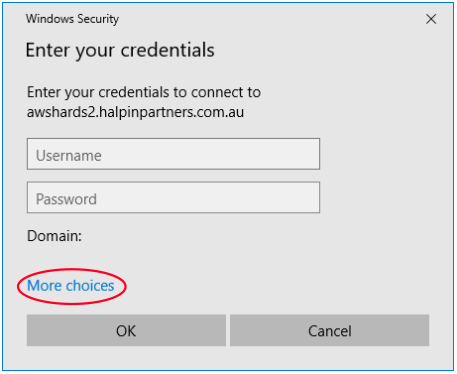
If this is the case click the "More Choices" link highlighted above to allow you to select your Yubikey SmartCard as per the below image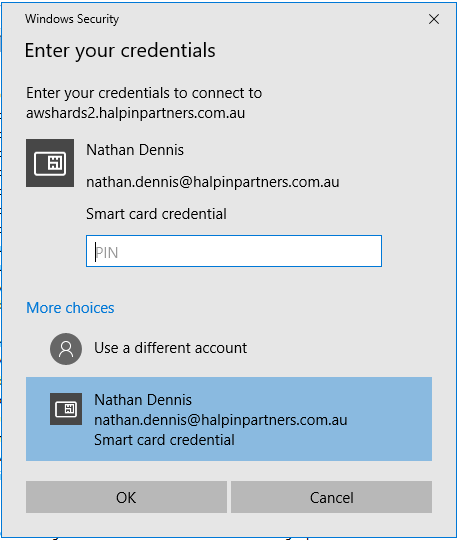
Enter your PIN for the Yubikey
Webmail Access
Use webmail access to access your emails on the go from a web browser
ZendTo
Use ZendTo to send large files to clients easily, or to request a client sends a large file to you.